
Orthodontic outcome preview: alignment before treatment
How alignment simulations support orthodontic consults, what to show aligner-curious adult patients, and where…
Read the guideUse case
How veneer preview simulations work, what a good before/after mock-up shows a patient, and where photorealistic simulation fits a veneer consult flow.
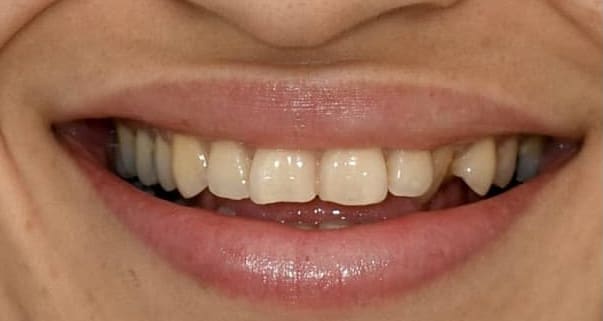
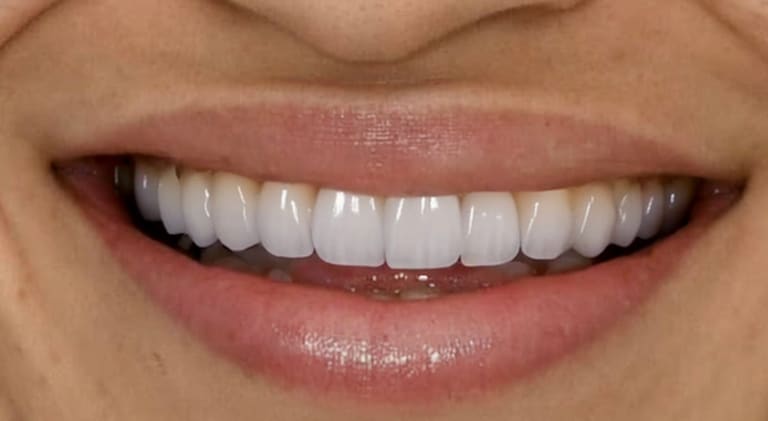
Step 1
A frontal photo with a natural, open smile. The preview has to sit on this face, not a stock smile.
Step 2
Generate the makeover, then walk brighter and more natural variants before anything is prepared.
Step 3
The technician works from the same image the patient agreed to, attached to the prescription.
A veneer preview is a simulated image of the patient’s own face wearing the proposed smile. It replaces “trust me” with a picture, so the conversation moves from abstract to concrete.
Patients considering veneers are buying an outcome they cannot see yet, and words alone rarely bridge that gap. A preview is not a treatment plan or a guarantee: it is a communication visual that sits beside your clinical records.
A photorealistic simulation is not a sketch. It renders the proposed tooth shape, length and shade on a photograph of the patient, so the conversation moves from abstract (“a brighter smile”) to concrete (“this shape, on you”). The SmileCraft makeover operation renders a full simulation; shade refine retargets tooth colour after a makeover, so you can walk a patient through brightness levels without regenerating the case from scratch.
The preview is a communication tool, not a promise: final results depend on biology, prep design and materials. Setting that expectation openly is part of using imagery honestly.
Patients ask how long veneers last and whether the simulation is guaranteed. The honest framing: the simulation shows the proposed aesthetic outcome, the lab translates it into ceramics, and maintenance follows your clinical guidance.
The makeover renders shape, length, and shade on the patient's photo. Shade refine can retarget colour after that render.
No. It is a communication preview of the aesthetic goal; your biology, the preparation and the lab's work determine the final outcome.
How alignment simulations support orthodontic consults, what to show aligner-curious adult patients, and where…
Read the guideWhy a whitening preview helps patients choose a realistic brightness level, how shade-drift conversations work…
Read the guideOperations, pricing and the data-handling posture, on one page.
Visit the homepageStart free in the web app, or book a demo to see the consult flow end to end.